Import CSV App
CSV import tool to bulk upload tickets, users, and knowledge base to Zendesk
Works with
Support
Developer
Help Desk MigrationAbout this app
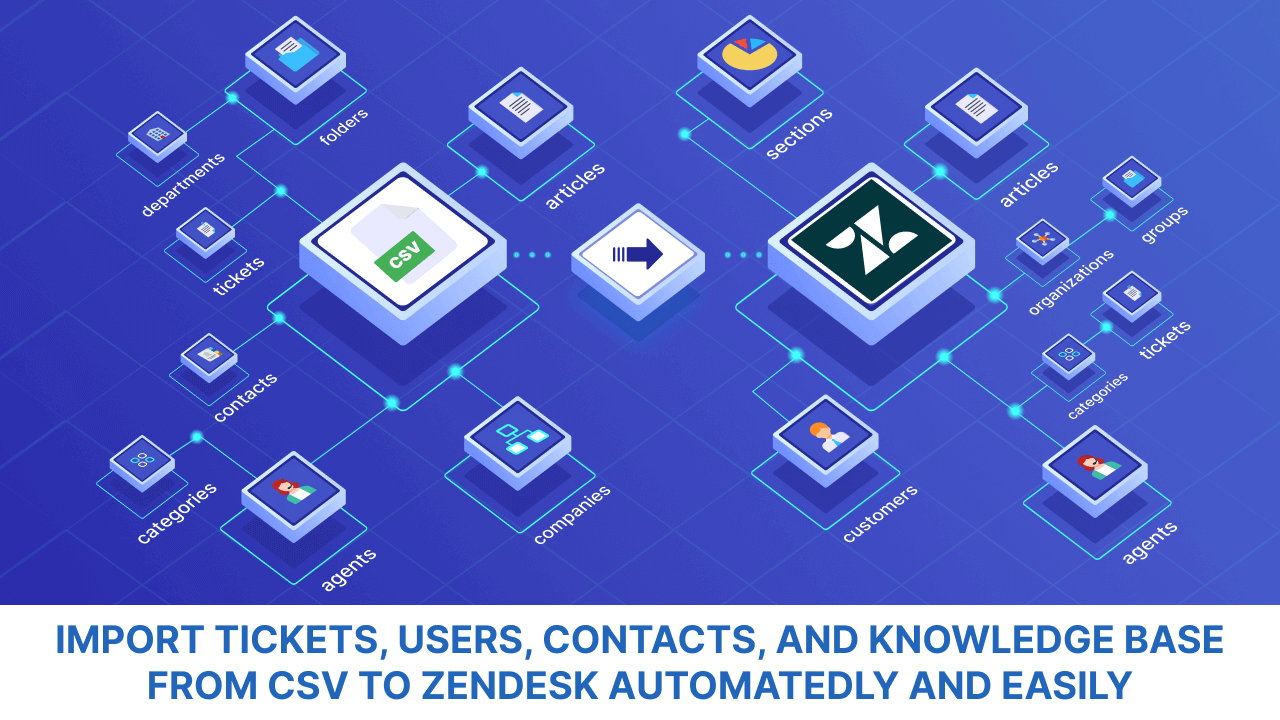 Import CSV App makes it simple to import CSV to Zendesk—whether you're migrating data, uploading contacts, or syncing archived tickets. With this CSV import tool, you get a seamless experience without writing a single line of code.
Why choose Import CSV app for Zendesk bulk data import?
Designed by Help Desk Migration, this app simplifies bulk CSV import without disrupting your workflow. Whether onboarding hundreds of agents or migrating years of legacy tickets, our CSV importer ensures a smooth, reliable import from CSV to Zendesk.
Import – Try it as a ticket importer to bring in support data from other platforms.
Bulk Upload – Use it as a ticket bulk uploader to recover or consolidate historical ticket records.
Team Onboarding – Try a data importer tool to add users and organizations in phases, making it easier to scale your support team.
What types of data can you import into Zendesk?
This CSV Importer supports bulk data import for all your essential records:
import tickets
import contacts
import organizations
import agents
import comments
import attachments
import custom fields for contacts, organizations, and tickets
import tags
You can also upload the knowledge base content like:
Articles
Folders
Categories
Attachments
Tags
How to import CSV to Zendesk?
Choose CSV as your Source.
Use our CSV import tool to migrate the following records.
Customers and companies
Tickets (including agents, customers, and companies)
Ticket comments (uploaded separately)
Help Center content - articles, categories, and folders
Make sure to prepare your CSV files using our templates.
What are the benefits of our Import CSV App for Zendesk?
Quick setup – Start importing in minutes with an intuitive workflow and no steep learning curve.
Free Demo – Preview your import with 20 random records or specific IDs. Run unlimited tests to fine-tune mappings and settings.
Agent matching – Match agents by email, assign a default agent for inactive users, or create new agents automatically when needed.
Field mapping – Align ticket, user, and organization fields with your Zendesk structure to keep relationships intact.
Custom fields – Import custom fields for tickets, contacts, and organizations to maintain your data model.
Automated options – Adjust your CSV import with features like tagging imported tickets, migrating inline images as attachments, and skipping or filtering attachments.
Expert support – Get help from our support team at any stage of your CSV import.
How to secure your CSV to Zendesk import?
The Import CSV App meets top security standards—SOC 2 Type II, SOC 3, HIPAA-ready, and Google-verified. Your data is encrypted in transit, securely hosted on AWS, and only used for the migration process.

Start importing your CSV data today and experience hassle-free movement into Zendesk.
App details
How to install
How to set up
Let's make sure your CSV files are all set to go. Check out our comprehensive guide that explains the requirements for CSV files.
PREPARE ZENDESK FOR THE DATA IMPORT
Let's dive into optimizing your Zendesk setup for maximum efficiency:
Let’s set up custom fields for seamless mapping.
Ensure to activate your help center if you're importing over the knowledge base.
PREPARE CSV FILES FOR ZENDESK IMPORT
When importing tickets, you must import other objects (agents, contacts, etc.) since they’re tightly connected.
At the bottom of the field mapping form, you can select the brand to which the tickets should be attributed. It's important to verify this prior to starting the test Zendesk import.
- For more details on preparing data for importing, visit our guide
START IMPORTING DATA INTO ZENDESK
- When your files are ready, go to Migration Wizard and create your account.
Select CSV from the list of available data sources
- Next, you'll be prompted to select the specific data to import. The options include the Help Desk and the Knowledge Base. If you want to import both, kindly note that you'll need to run two separate Zendesk imports
Upload your CSV files and connect the Zendesk account
Select the objects you want to migrate and map data fields
Click Continue as the Migration Wizard imports a small amount of data into Zendesk. Once the Demo Migration wraps up, a page displaying the migration results. Click “View 20 records,” and you will see a list of imported tickets. You can download a report with the IDs of imported data.
Double-check the results. Consult our guide on how to check the results of your Zendesk import. If any questions come up during this migration phase, our support reps are ready to help.
Ready for Zendesk import? Just wrap up the payment and and begin importing all data to Zendesk.
Leave a review
Share your experience with the rest of the Zendesk community